Noise2Void Interface
The Noise2Void dialog contains of a number of tabs — Apply and Train — that let you configure and complete a model training workflow, as well as apply a trained model to denoise a dataset.
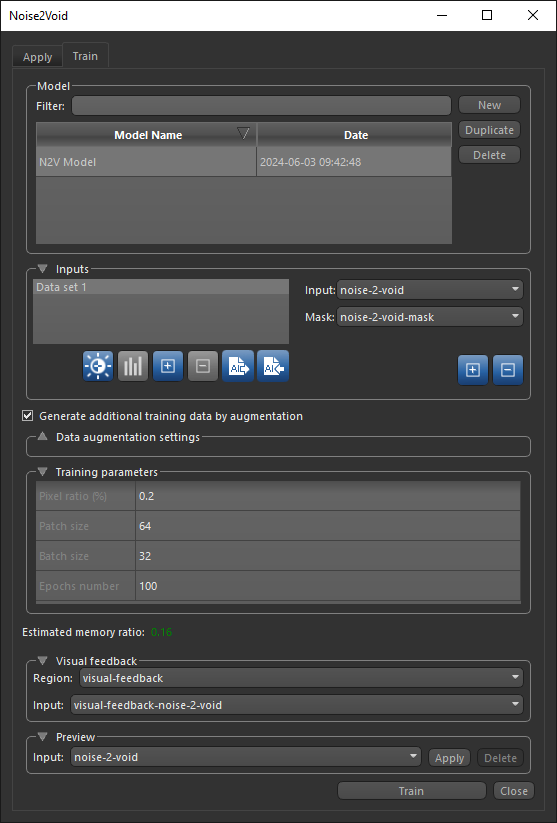
Choose Artificial Intelligence > Custom Deep Model Architectures > Noise2Void on the menu bar to open the Noise2Void dialog, shown below.
Noise2Void dialog
 Apply Tab
You can apply a trained denoising model on a selected dataset on the Apply tab, shown below.
Apply tab
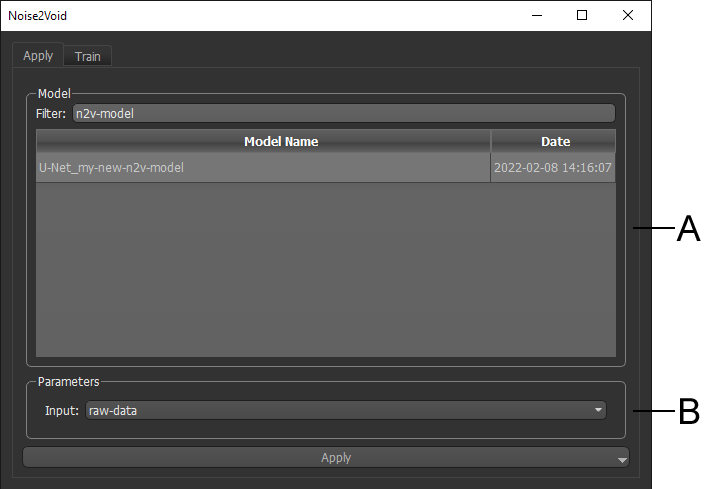
A. Model list B. Parameters
Model List
The following options are available in the Model box:
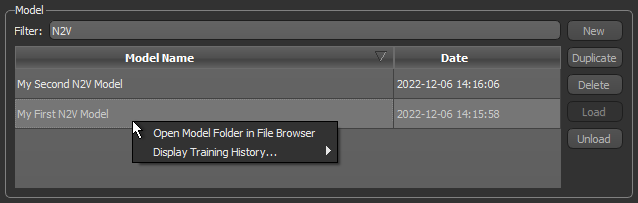
- You can filter the models in the list by entering keywords in the Filter edit box.
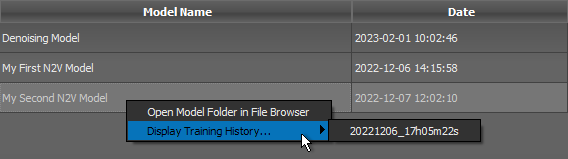
- You can right-click a model and then choose Open Model Folder in File Browser to open the model folder.
- You can right click a model and then choose Display Training Metrics to view the training results of any training session.
Parameters
The following options are available in the Parameters box for a selected model:
Input… Lets you choose the dataset you want to apply the selected model to.
Train Tab
The options on the Train tab, shown below, let you generate new models and train models on a selected dataset (see Training Noise2Void Models). You should note that most of the functionalities — Model, Inputs, Data Augmentation, Training Parameters, and Preview — are the same as those for the Deep Learning Tool.
Train tab
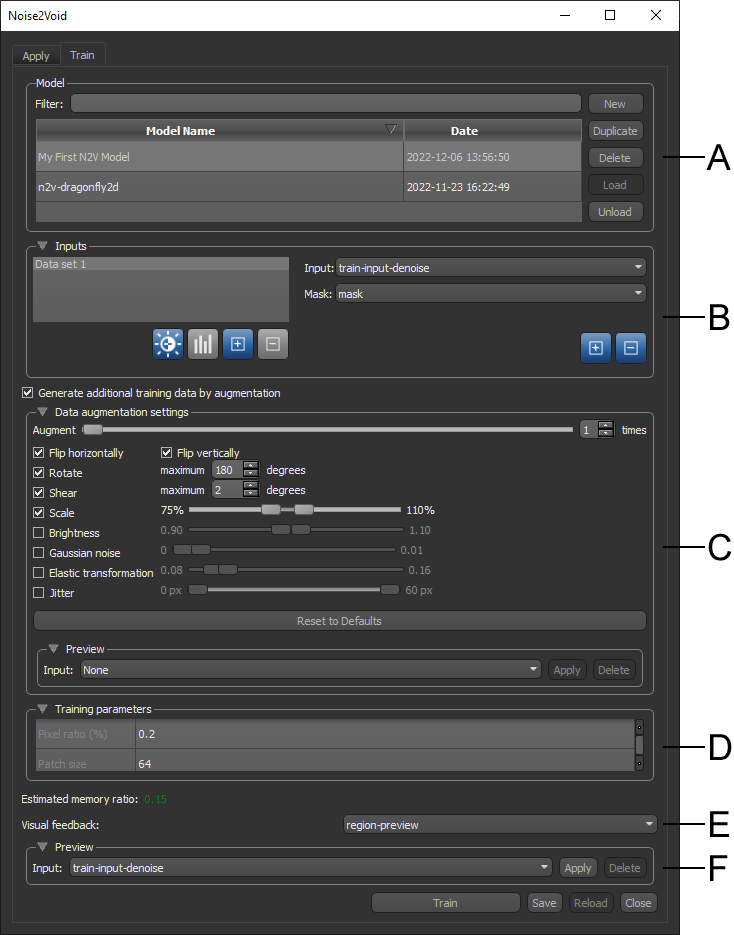
A. Model B. Inputs C. Data Augmentation D. Training Parameters E. Visual Feedback F. Preview
Model
All Noise2Void models available in the N2V folder, both trained and untrained, are listed in the top section of the Model Overview panel. You can create new models and duplicate models from this section of the dialog, as well open the model folder and display the training history.
Model
| Description | |
|---|---|
| Filter | Lets you filter the model list by Model Name key words. You can also sort the list in ascending or descending order. |
| Model list | |
| Model Name |
Indicates the name assigned to the model. You can edit the name of a model by double-clicking.
Note Models names with the symbol * appended to their name indicate that the model is not saved. Unsaved changes include updates to the training weights. |
| Date | Indicates the date and time that the model was created. |
| Model controls | |
| New | Lets you create a new N2V model (see Generating Noise2Void Models). |
| Duplicate |
Creates a copy of the selected model.
Note The name of a duplicated model can be edited by double-clicking it in the Model Name column. |
| Delete | Deletes the selected model. |
| Load | Loads the selected model. |
| Unloads | Unloads the selected model. |
Inputs
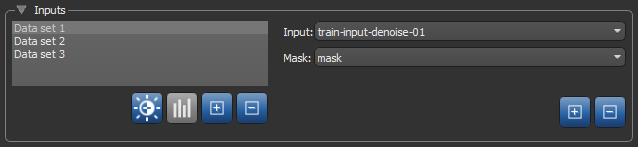
You can choose the input(s), output(s), and mask(s) for defining the model working space in the Inputs box, shown below.
Inputs
| Description | |
|---|---|
| Inputs list |
Lists all of the selected training sets, which include inputs, outputs, and masks. Options include the following:
Edit Calibration… Click the Edit Calibration Add… Click the Add Remove… Click the Remove |
| Input drop-down menu |
Lets you select the input(s) for training the model.
Note You can also choose multiple inputs for the training input. For example, when you are working with color images. |
| Mask drop-down menu |
Lets you select a mask to define the working space for the model, which can help reduce training times and increase training accuracy. You should note that masks should be large enough to enclose the selected Patch size (see Creating Mask ROIs).
Note The starting point of the input (patch) grid is calculated from the minimum (0,0) of each connected component in the mask. You should note input (patches) that do not correspond 100% with the applied mask will be ignored during training. |
 button to open the Normalization dialog, in which you can normalize calibrated and uncalibrated datasets prior to training (see
  button to add a new item to the Inputs list. The input(s) for the item can be selected in the Input drop-down menu.
 button to remove the selected item from the Inputs list.Data Augmentation Settings
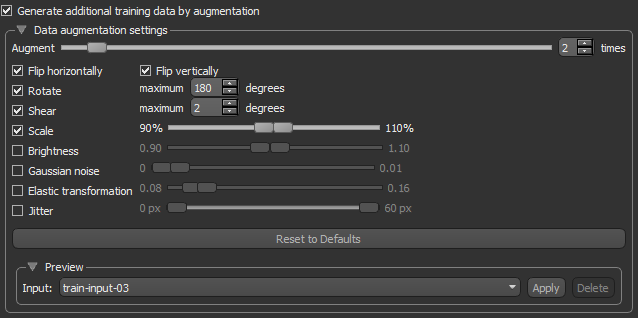
A common way to compensate small training sets is to use data augmentation. If selected, different transformations will be applied to simulate more data than is actually available. Images may be flipped vertically or horizontally, rotated, sheared, or scaled. As such, specific data augmentation options should be chosen within the context of the training dataset and knowledge of the problem domain. In addition, you should consider experimenting with the different data augmentation methods to see which ones result in a measurable improvement to model performance, perhaps with a small dataset, model, and training run.
Note Although the performance of neural networks often improves with data augmentation, this might not be the case when training Noise2Void models.
Check the Generate additional training data by augmentation option to activate the Data augmentation settings, shown below.
Data augmentation settings
Training Parameters
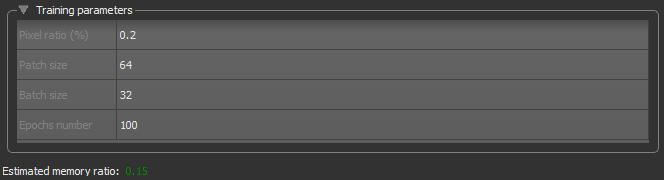
The basic settings that you need to set to train a deep model are available in the top section of the Training Parameters tab, as shown below.
Training parameters
| Description | |
|---|---|
| Pixel ratio (%) |
Is the percentage to pixels that will be manipulated per patch.
Note In most cases, a pixel ratio of 0.20 will provide good results. |
| Patch size |
During training, training data is split into smaller 2D data patches, which is defined by the 'Patch size' parameter.
For example, if you choose a patch size of 64, the dataset will be cut into sub-sections of 64 x 64 pixels. These subsections will then be used as the training dataset. By subdividing images, each pass or 'epoch' should be faster and use less memory. |
| Batch size | Patches are randomly processed in batches and the 'Batch size' parameter determines the number of patches in a batch. |
| Epochs number | A single pass over all the data patches is called epoch, and the number of epochs is controlled by the 'Epochs number' parameter. |
| Estimated memory ratio |
Displays the estimated memory ratio, which is calculated as the ratio of your system's capability and the estimated memory needed to train the model at the current settings.
Green … The estimated memory requirements are within your system's capabilities. Yellow … The estimated memory requirements are approaching your system's capabilities. Red … The estimated memory requirements exceed your system's capabilities. You should consider adjusting the model training parameters. Note Memory is one of the biggest challenges in training deep neural networks. Memory is required to store input data, weight parameters and activations as an input propagates through the network. In training, activations from a forward pass must be retained until they can be used to calculate the error gradients in the backwards pass. Refer to imatge-upc.github.io/telecombcn-2016-dlcv/slides/D2L1-memory.pdf for information about calculating memory requirements. |
Visual Feedback
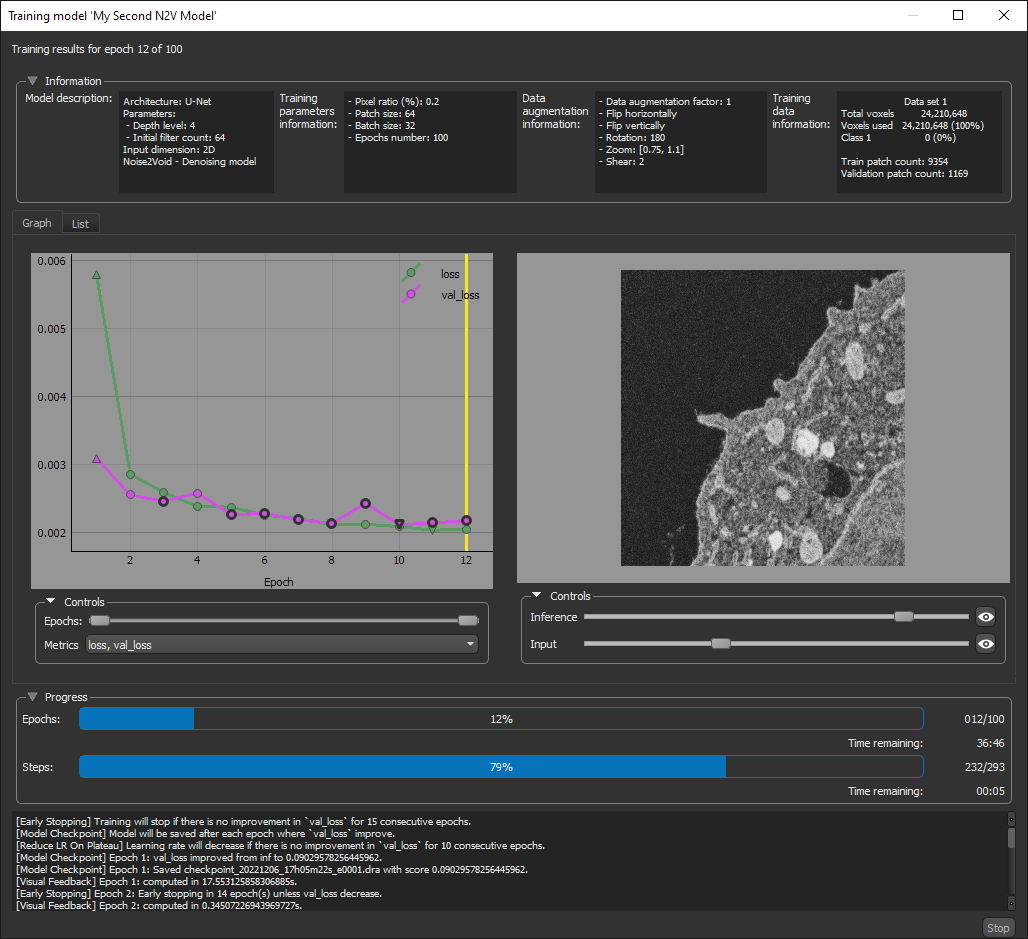
To help monitor and evaluate the progress of training Noise2Void models, you can designate a 2D rectangular region for visual feedback (see Enabling Visual Feedback). With the Visual Feedback option selected, the model’s inference will be displayed in the Training dialog in real time as each epoch is completed, as shown on the screen capture below.
In addition, you can create a checkpoint cache so that you can save a copy of the model at a selected checkpoint (see and Saving and Loading Model Checkpoints). Saved checkpoints are marked in bold on the plotted graph.
Training dialog
Preview
You can preview the result of applying a trained model to a selected dataset in the Preview box, shown below. Previews are limited to the pixels visible in the selected view.
Preview

